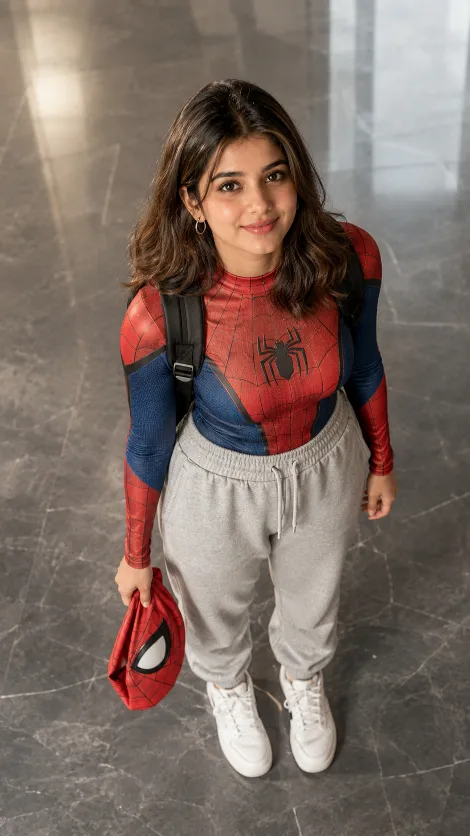
How to Use This Prompt to Generate a Cinematic Spider-Man Portrait
This prompt is designed for AI image generators such as ChatGPT (GPT Image), Gemini, Flux, Midjourney, Ideogram, and Nano Banana. It combines detailed subject description, camera settings, lighting, clothing, environment, and quality instructions to produce an ultra-realistic cinematic portrait.
Step 1: Open Your AI Image Generator
Use an AI image generation tool that supports long, detailed prompts.
Step 2: Upload a Reference Photo (Optional but Recommended)
If you want the generated image to look like a specific person, upload a clear front-facing reference photo. This helps the AI preserve facial identity, hairstyle, and overall appearance.
Step 3: Copy and Paste the Prompt
Copy the entire positive prompt into the AI image generator's prompt box. If the platform supports a separate Negative Prompt field (such as Flux or Stable Diffusion), paste the negative prompt there as well.
Step 4: Generate the Image
Click Generate and allow the AI to process the prompt. The model will create an image based on the detailed instructions provided.
What This Prompt Creates
Using this prompt, the AI generates:
An ultra-realistic South Asian woman
A Spider-Man-inspired athletic outfit with realistic web patterns
A polished indoor marble lobby
A high-angle, top-down camera perspective
Soft cinematic lighting
A warm natural smile
A premium DSLR-style portrait
8K-quality photorealistic details
Instagram lifestyle photography aesthetics
Why This Prompt Produces Better Results
Unlike short prompts, this one gives the AI precise instructions about:
Subject appearance
Clothing
Camera angle
Lens simulation (85mm)
Lighting
Environment
Color grading
Texture quality
Composition
Image resolution
The more detailed the instructions, the more consistent and realistic the generated image tends to be.
Tips for Best Results
Use a high-quality reference photo for accurate identity preservation.
Generate multiple versions and choose the best one.
If needed, slightly adjust the camera angle, lighting, or background while keeping the core prompt unchanged.
Keep the negative prompt enabled to reduce common AI issues such as blurry faces, extra fingers, distorted anatomy, or low-quality textures.
.webp)
.jpg)